Hello everyone! I’ve been working on the last couple of days on the best way to actually get a Hologram be displayed in Hololens 2, Android, Iphone and Ipad using the Mixed Reality Toolkit. I just needed to understand how this can be accomplished, home this helps you guys understand at least how to install the environment to start building amazing apps (since this tutorial is only the top of the iceberg).
It is pretty important to have installed exactly the tools and versions i indicate in this post, why? since Unity, Microsoft and Google are launching updates frecuently, you can run with different errors by not following this guide. I will upload the updates every time the company launches something stable but … let’s begin with this ones.
Prerequisites for this tutorial:
- Windows 10 PC (I have Enterprise version 1903)
- Visual Studio 2019 (v 16.2 or higher)
- Windows 10 SDK build 18362 or later
- Hololens 2 Emulator (Since i don’t have one at the moment).
- Unity (in this case i used LTS Release 2018.4.14f1, some of the features do not work with 2019 version).
- Mixed Reality Toolkit
Lets create a Hololens 2 Button Hologram.
- We will work first in Unity and from there we will create our VS solution which will be tested in our Emulator. Open Unity and create a New project.

- Select a name to your project and place it into a folder, make sure 3D option is selected for template and select Create Project option.

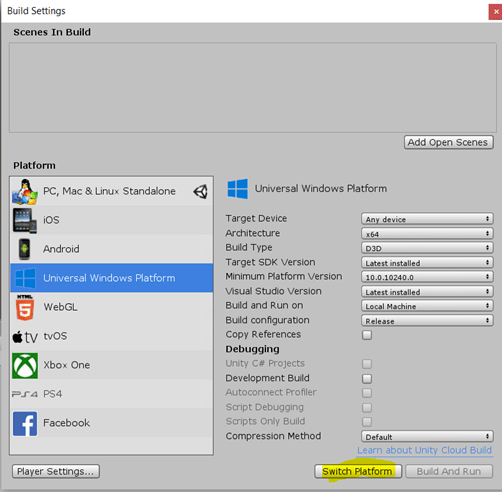
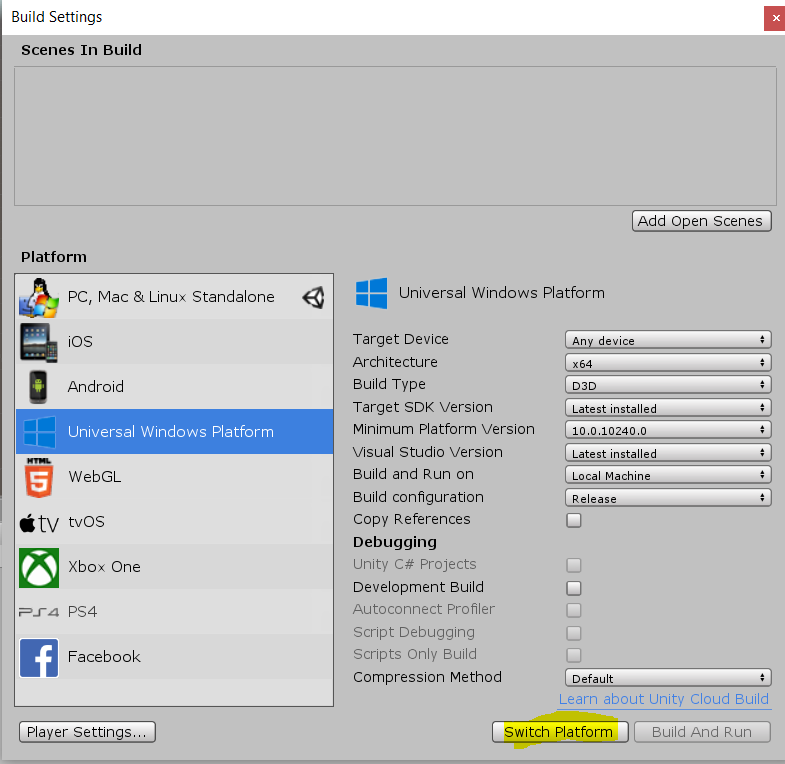
- Once our project is created we need to make sure we configure the build settings to be exported for Hololens 2 (note: this settings need to be updated if you want to build for anothe platform). So go to File > Build Settings a popup will appear with different Settings, make sure you select Universal Windows Platform (this is the one that Hololens 2 supports), and select option “Switch Platform”.
-
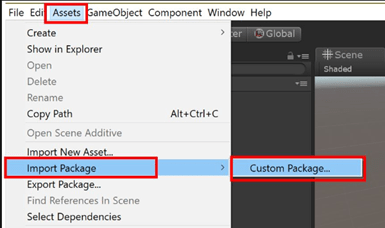
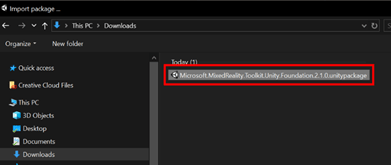
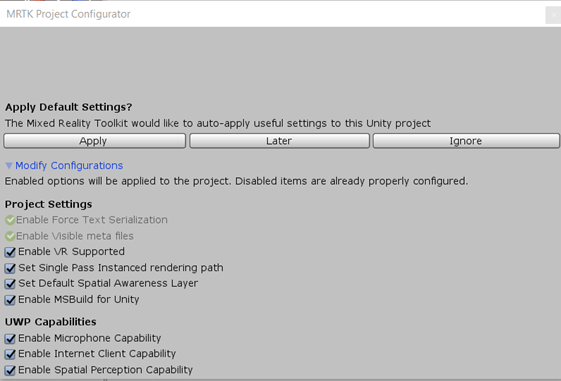
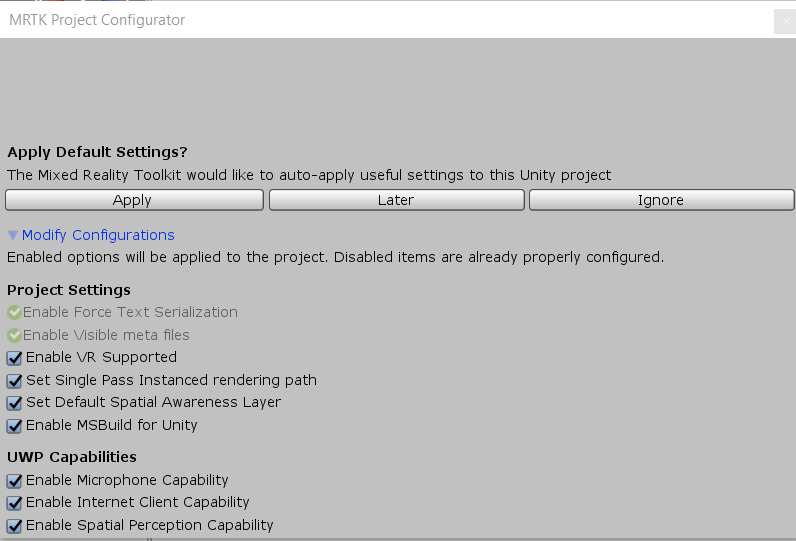
- You can follow all instructions on how to set up the environment for Mixed Reality Toolkit development for Hololens 2, but you can also let this to the kit itself, let me show you how… We will now import the “Foundation 2.1.0 package we downloaded”. Go to Assets > Import Package > Custom Package . Select the package and import all. If you see a pop-up dialog box asking to apply the Mixed Reality Toolkit default settings, click Apply (here the toolkit will make sure all the necessary items are corretly set up).
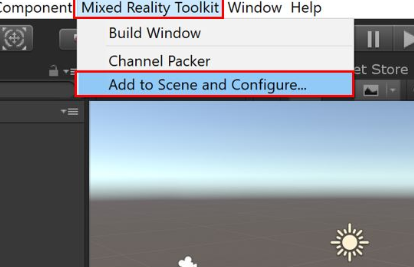
- Now lets configure our MRTK. Go to the menu Mixed Reality Toolkit > Add to Scene and Configure and in the popup that will appear select the DeafaultHololens2ConfigurationProfile. Then Save your scene with the name you want.
-
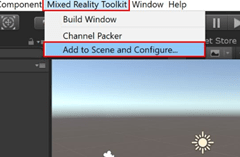
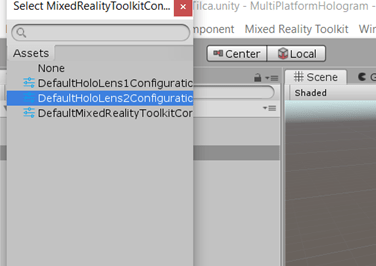
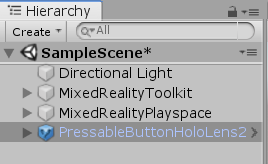
- Now, MRTK already has a lot of UI and Interaction building blocks. We will go and use a Hologram already developed. So go to your Project > Assets > MixedRealityToolkitSDK > Features > UX > Interactable > Prefabs and select the “PressableButtonHoloLens2”. Drag it to your scene. If you don’t have the TMP Essentials which access to TextMesh Pro you will get the following Pop Up after you dragged the button. Press “Import TMP Essentials” and close once finished.

- Your scene should look like this

- Then double click the PressableButtonHololens2 you will see something like this. Then set Position – Z : 0.02 And press Play.
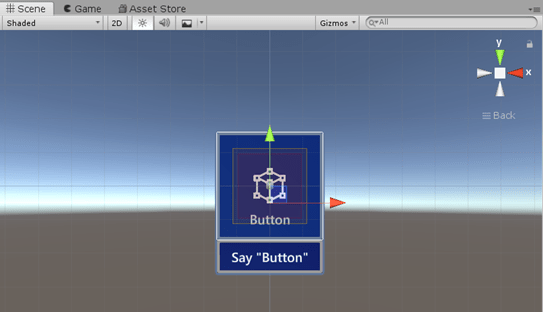
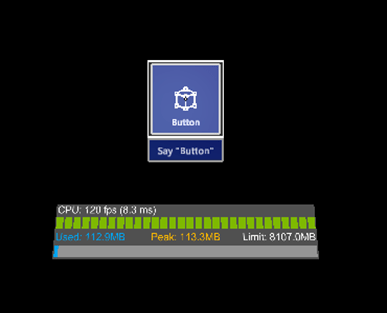
- Time to build!!! Go to File > Build Settings > and Add Open Scene. And Build. Create a new folder where you want the VS Solution to be saved.

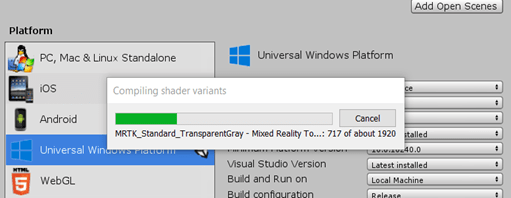
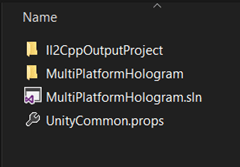
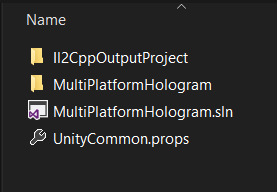
- Then you will have a VS solution as a result. Open it in VStudio.

- If you installed the Emulator as mentioned at the beginning of this post, you will see the following option “Hololens 2 Emulator”. Let’s try it.
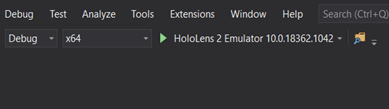
- The emulator will start








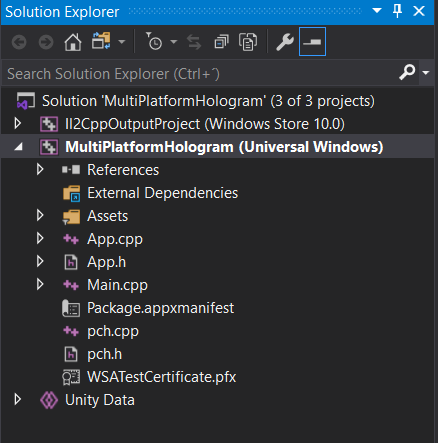
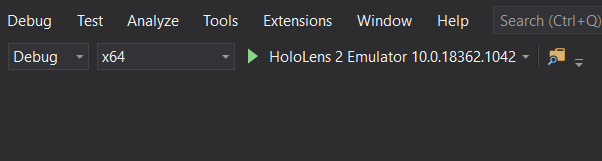
Now Lets build our Button to Android and Iphone.
Lets export this Hololens 2 Button Hologram to Android.
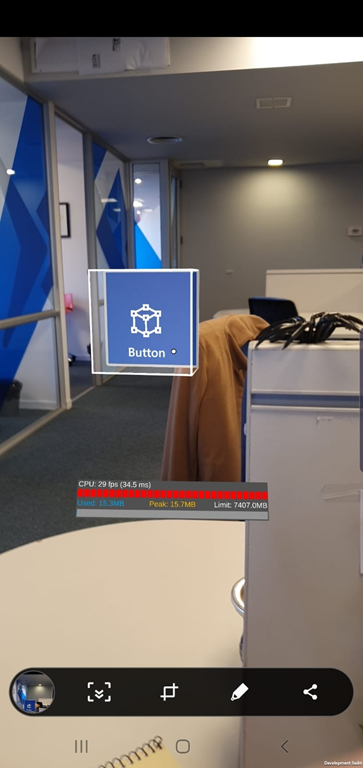
- First of all we need to switch out platform in Unity. So go to File > Build Settings, select Android, add current scene and “Switch Platform”. Once it finished switching, the MRTK will make sure again that you have the correct configuration set. In case you don’t will popup a window suggesting changes select “Apply”. If you export it right now, the app will install and you will see the button in the screen but with no Augmented Reality. If you check

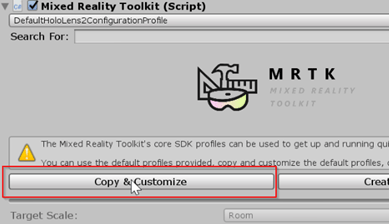
- Now we need to enable the Unity AR camera settings provider. To do that we are going to copy our default settings. So select the Mixed Reality Toolkit in your scene, and then in the inspector select Copy and Customize.
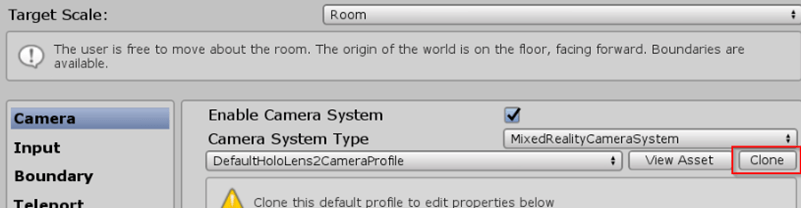
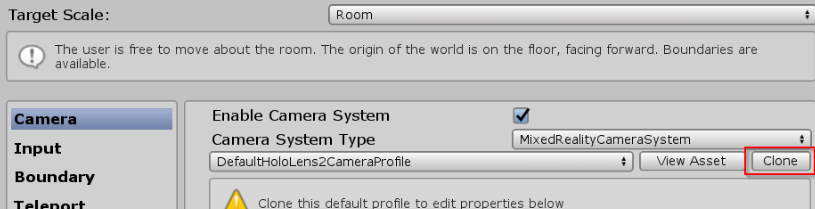
- Clone Camera and navigate to Camera Settings Provider and Add a new one with Type > Toolkit Experimental Unity AR > Unity Camera Settings.
- We are ready to build our APK for android!


Lets export this Hololens 2 Button to IPhone.
- Follow the same steps from 1 to 3 un how to export for Android.
- Switch now your application to IOS.
- Go to Edit > Project Settings > Player > Other Settings, under the Optimization header, uncheck Strip Engine Code.
- And ready!

 Ivana Tilca
Leave a Reply