Before starting with our tutorial, please make sure you follow requirements installations instructions from this post (check requirements).
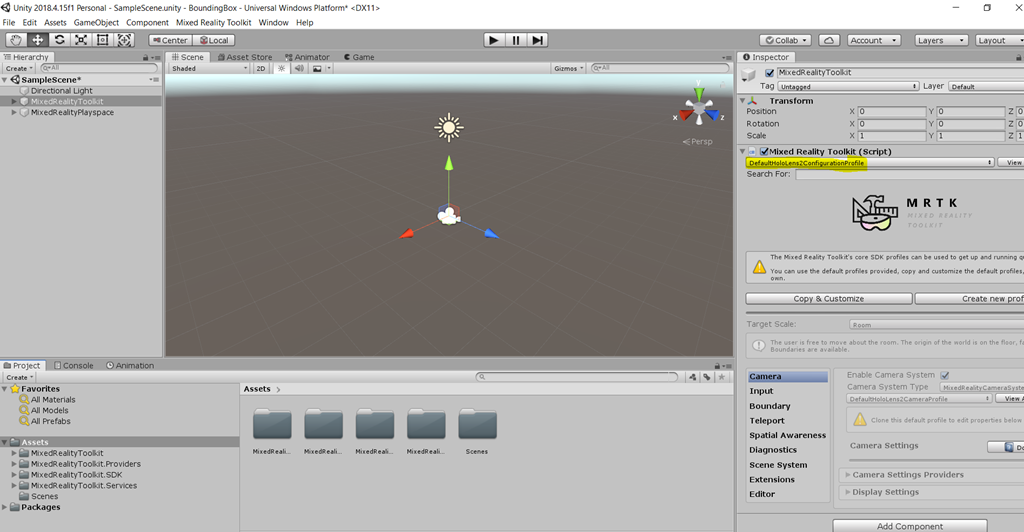
Once you have all your project ready you will see something like this.
What is a Bounding Box and when do i need it?
Basically if you want to transform objects in Mixed Reality, this is the standard interface (BoundingBox.cs), that Microsoft provides to accomplish this. You can scale, rotate and display proximity.
How can I Transform an object?
* We will use a PacMan i created, you can download the object in this link.
1 – Go to Asset> Import new Asset> Pacman> Import we will use this object to start learning how the bounding box works.

2 – You will see the object in your Asset folder under Project like this. Drag and drop it to your scene.
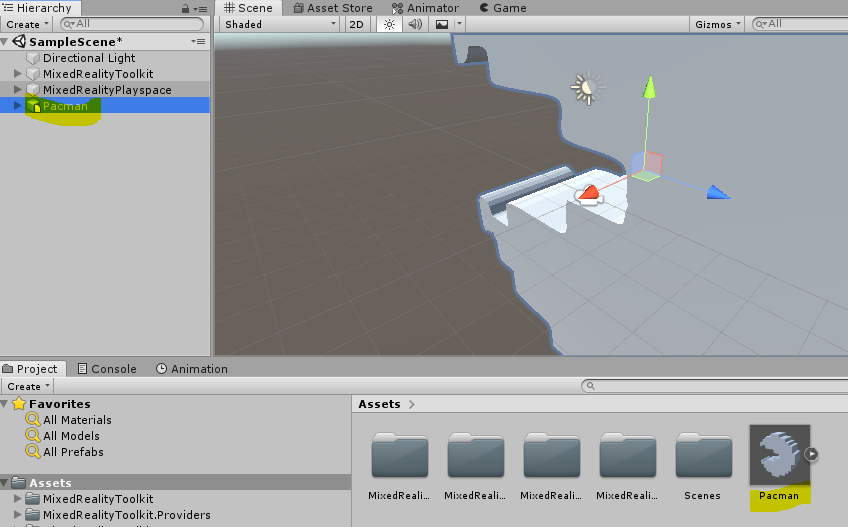
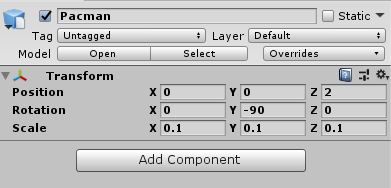
3 – Select the Pacman object in your scene, and go to Inspector you will change the values to the following.
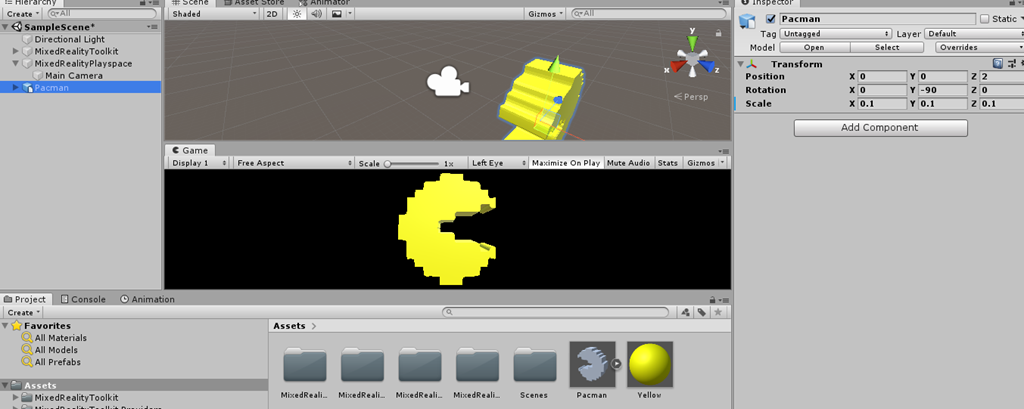
4 – Let’s put some color on it. Go to Asset > Create> Material. An name the material Yellow. Select the material in your Asset folder then go to Albedo property in the Inspector panel and set it to #FFF400. Finally drag and drop the material on top of your Pacman object located in your scene.
5- With Pacman Object selected, go to your Inspector Panel > Add Component > Box Collider. Repeat the step and Add Component Bounding Box. Ok let’s check the properties that we have.
- Target Object. This specifies the object that you want to manipulate. If its empty then it will work with the default owner object.
- Bounds Override. Sets a box collider from the object for bounds computation.
- Activation Behavior.
- Activation on start. If you want the bounding box becomes visible once the scene is started.
- Activate By Proximity. If you want the box to become visible when articulated hand is close to the object.
- Activate By Pointer. It activates if it is targeted by a hand-ray pointer.
- Activate Manually. You have to activate it trough script by setting the BoundingBox.Active to true.
- Scale minimum. Minimum allowed scale.
- Scale maximum. Max allowed scale.
- Box Display. This are visualizations options.
- Flatten axis > Flatten Auto – the script will disallow manipulation along the axis. which results in a 3D bounding box.
- Handles. You can assign a material and prefab to override the handle style.
- Events.
- Rotate Started. Fired when rotation starts
- Rotate Ended. Fired when rotation ends
- Scale Started. Fires when scaling ends.
- Scale ended. Fires when scaling ends.
- Handles Styles
- Default Hololens 1 style.
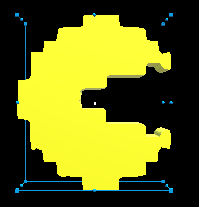

- If you want to apply the Hololens 2 style then click on the little dot located at the right of the Inspector Panel > Handle > Handle Material and search for two of the default materials like this.
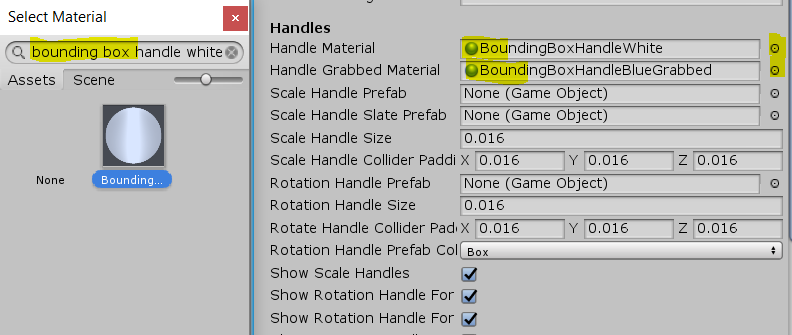
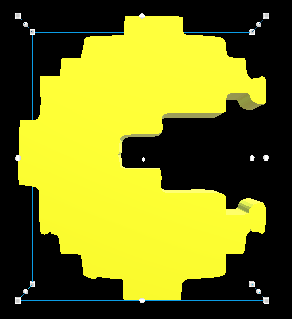

- *The Scale Handle prefab are available if you install Unity.HoloLens2.GettingStarted.Tutorials.Asset.2.1.0.0 . Set the Scale Handle Prefab and Slate to the following.
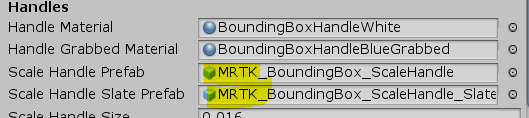
- Finally set the following properties
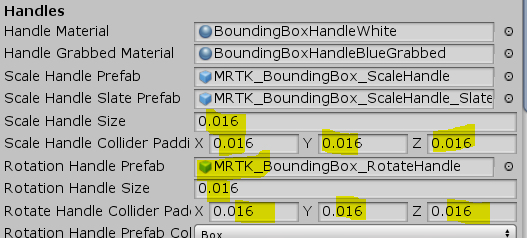


- Proximity. Shows and hide the animation based on the distance to the hands.
- Proximity Effect Active. Enable
- Handle Medium Proximity. Distance first step scaling
- Handle Close Proximity. Distance second step scaling
6 – Ok we set properties of the box, but we can not move it yet… so how do we manipulate it? We have to combine it with a Manipulation Handler (manipulationhandler.cs), for it to be manipulated. This handler supports both, one and two hand manipulation. So select Pacman in your scene and go to Inspector panel > Add Component > Manipulation Handler. Lets understand the properties we have in here.
- Host Transform. Transform that will be dragged, in case is empty, then it will let transform the object this property is assigned to (Pacman in our example).
- Manipulation Type. Specifies if the object can be manipulated with one, two or one and two hands.
- Two handed manipulation Type. This will indicate the object what can be transformed
- Allow far manipulation. if you want to allow manipulation with pointers.
- One hand rotation mode near. How the object will behave if manipulated with one hand.
- One hand rotation mode far. how will behave if manipulated by control at a distance.
- One hand rotation mode options. how the object will rotate if grabbed with one hand
- Maintain original rotation. does not rotate object as moved.
- Maintain rotation to user. maintains rotation x/y to the user.
- Gravity aligned maintain rotation to user. Maintains objects original rotation to user but makes the object vertical.
- Face user. ensures object always faces users.
- Face away from user. faces away from users, useful for panels, slates.
- Rotate about object center. only works for articulated hands/controller.
- Rotate about grab point. only works for articulated hands/controllers
- Release behavior. when an object is released, specify a physical movement behavior. Requires a ridigbody component.
- Constrains on rotation. specifies on which exist the object will rotate when interacted with the axis.
- Use local space for constraint. constrains to world space axis or local space axis.
- Constrains on movement.
- Smoothing active. animation more smooth.
- Smoothing amount one hand.
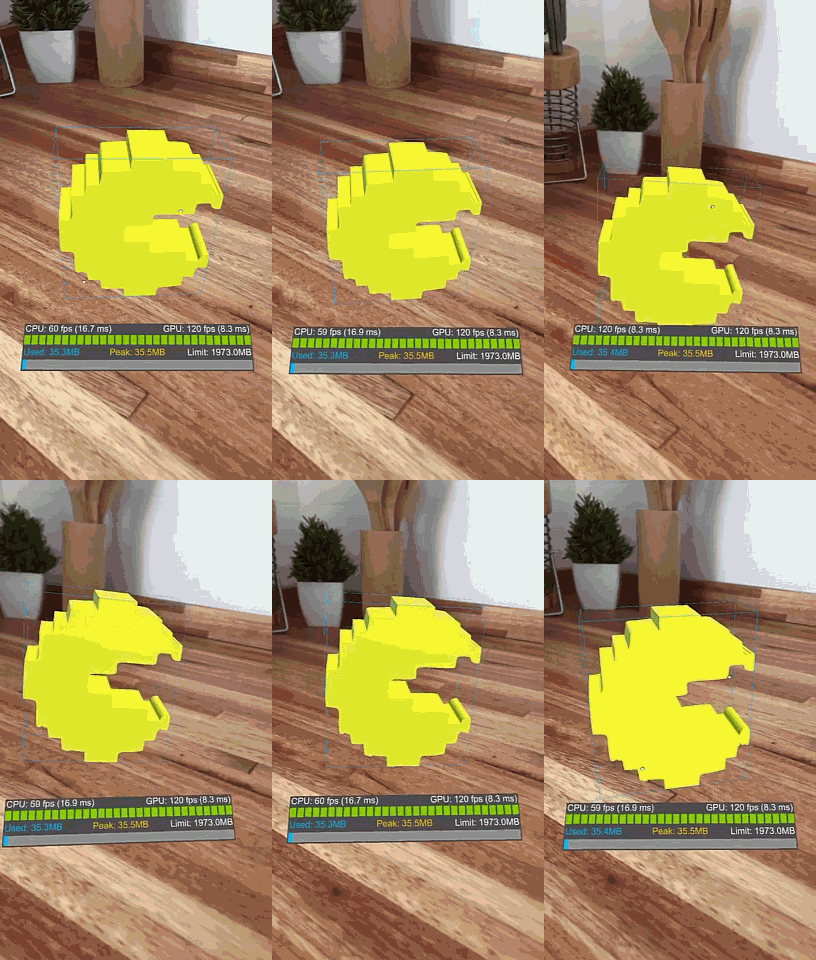
Great so we have project ready!!!

 Ivana Tilca
Leave a Reply