
Hello world, hello AR, VR, and XR lovers!
2021 its starting and I wanted to post an article that can guide you on how to work with the just-released version of MRTK, and export it to different Android devices.
Unity version.
Love the version of Unity 2020, in fact, I can’t wait until it gets LTS but, the documentation indicates that MRTK still does not support that version for Android and IOS, and trust me, I tried… which is why the version I recommend working with is 2019.4.16f1.
Let’s talk about MRTK.
I stopped working with MRTK a couple of months ago, and since then, two new versions came out. 2.4.0 and 2.5.1. While I was looking for the links to write this article I came across version 2.5.3. (There is a difference of approximately three months between each release). It is not easy to be aware of all the versions as they come out, but I recommend you go to this link Releases · microsoft / MixedRealityToolkit-Unity (github.com) to check out the latest releases.
We will work with version MRTK 2.5.3
To develop with MRTK 2.5.3 and export our app to Android cell phones.
1 – Create a new 3D Unity project, and Import the MRTK Foundation Package version 2.5.3. To do this, let’s install the MR features using the Unity Package Manager. First we need to register the MR component server, Open <projectRoot>/Packages/manifest.json in a text editor and add the following code at the top of the manifest.
{
  "scopedRegistries": [
    {
      "name": "Microsoft Mixed Reality",
      "url": "https://pkgs.dev.azure.com/aipmr/MixedReality-Unity-Packages/_packaging/Unity-packages/npm/registry/",
      "scopes": [
        "com.microsoft.mixedreality",
        "com.microsoft.spatialaudio"
      ]
    }
  ],
Then include the following dependencies.
 "dependencies": {
    "com.microsoft.mixedreality.toolkit.foundation": "2.5.3",
    "com.microsoft.mixedreality.toolkit.tools": "2.5.3",
    "com.microsoft.mixedreality.toolkit.examples": "2.5.3",
Once we added MRTK to the package manifest, we need to install the MRTK Foundation package.

2- Change platform by selecting Android Platform under File > Build Settings.

3 – Disable Vulkan by removing it from Edit > Project Settings > Player > Other Settings > Vulkan

4 – Add MRTK Scene by pressing the Add scene option located in Mixed Reality Toolkit > Add Scene. And prepare as you wish, in my case, I create R2D2.
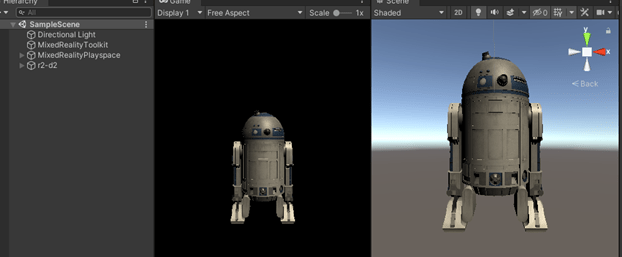
5 – Once you have your application ready to be exported. Add the following packages you can download them in here.
- AR Foundation 3.1.3
- ARCore XR Plugin 3.1.3
6 – Now we need to change the camera in our MRTK profile. First make sure you have selected the Default Hololens 2 configuration profile. Then press clone button at the right to clone the profile. Once this is donde, select the Camera option, and clone configuration too.
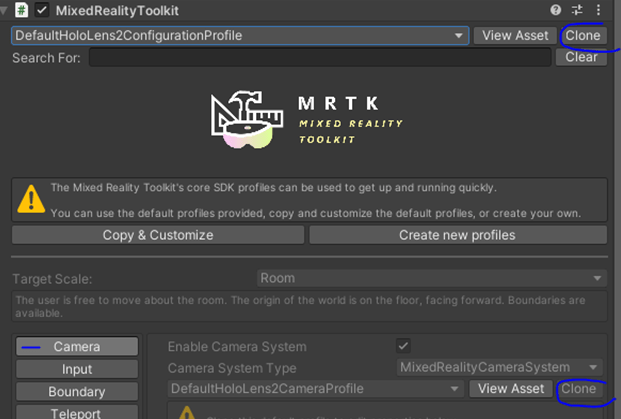
Then add a Camera Settings Provider and select the AR Camera.
7 – Finally, execute the update by selecting Mixed Reality Toolkit > Utilities > UnityAR > Update Scripting Defines
8 – Once this is done your project is ready to be exported to Android Cell Phones. Just build and install your APK.
To develop with Azure Spatial Anchors, MRTK 2.5.3 and export it Android Cell Phones
1 – Import MRTK Package Foundation as described in the previous steps.
2 – Incorporate MRTK Scene, and clone profile as described in previous steps.
3 – Import AzureSpatialAnchors221 unity package.
4 – Add configuration to your profile scene. In order to use Anchors, we need to add component “AR Anchor Manager” and “Disable Diagnostics system”.
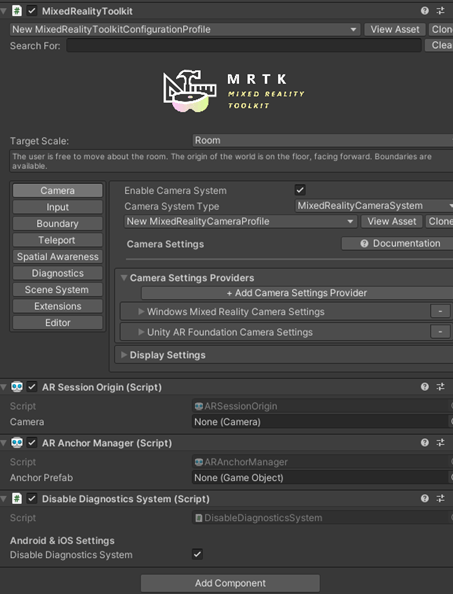
5 – Once we udpated these items, we can now create our APK and install our Anchor application.
To develop with MRTK to Oculus Quest
1 – Import MRTK Package Foundation as described in the previous steps.
2 – Incorporate MRTK Scene, and clone profile as described in previous steps.
3 – Import Oculus Integration from Asset Store . An update popup up will appear, accept it.

4 – Update modules by going to Mixed Reality Toolkit > Utilities > Oculus > Integrate Oculus Integration Unity Modules
5 – Once this is finished, update the plugin providers by selection Edit > Project Settings >XR Plug-in Management enable Oculus.
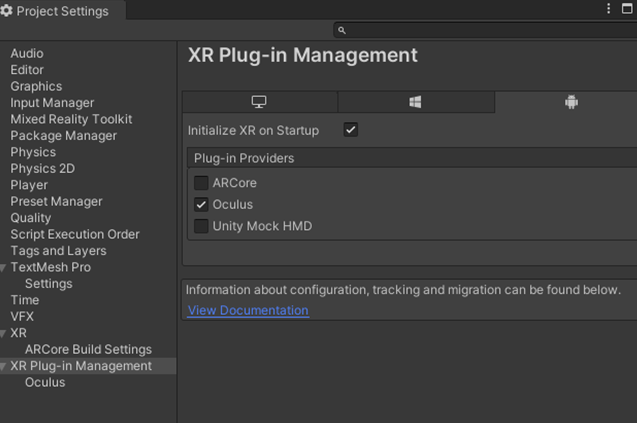
6 – In your project assets folder, select Oculus folder and click on Oculus Project.asset and under the Inspector panel, change Hand Tracking Support to Controllers and Hands.
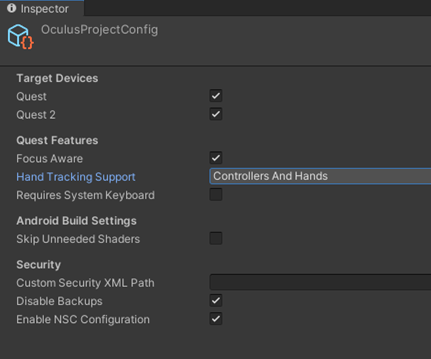
7 – Clone the DefaultXRSDKInputSystemProfile and clone and update, Input > Input Data Providers > Add Data Provider > Microsoft.MixedReality.Toolkit.XRSDK.Oculus > OculusXRSDKDeviceManager

8 – Once I tried to export to Oculus I got a warning
GUID [a57801270cf689244b48012cf9db1713] for asset ‘Packages/com.unity.xr.oculus/Runtime/Android/arm64/libAudioPluginOculusSpatializer.so’ conflicts with: ‘Assets/Oculus/Spatializer/Plugins/Android/libs/arm64-v8a/libAudioPluginOculusSpatializer.so’ (current owner) We can’t assign a new GUID because the asset is in an immutable folder. The asset will be ignored.
Unity started supporting supporting the Oculus plug-in natively within Unity starting with v5.4 This means that you don’t have to install the plug-in into your project for basic spatialization so you can go ahead and delete the Oculus Audio SDK installed files.
9 – And we are ready to Build and Run our application to our Oculus device.


 Ivana Tilca
Leave a Reply